

Disclosure: ByteWisePicks.com is reader-supported. Some links in this guide are affiliate links, which means we may earn a commission if you buy through them, at no extra cost to you. As an Amazon Associate, we earn from qualifying purchases. This guide is research-based: we did not test these products hands-on. Our notes come from manufacturer specs, retailer listings, and the technical sources listed at the end.
The guide
Your laptop has two USB-C ports. You have two monitors, a keyboard, a mouse, a webcam, a printer, an Ethernet cable, and a phone that needs charging. The math does not work.
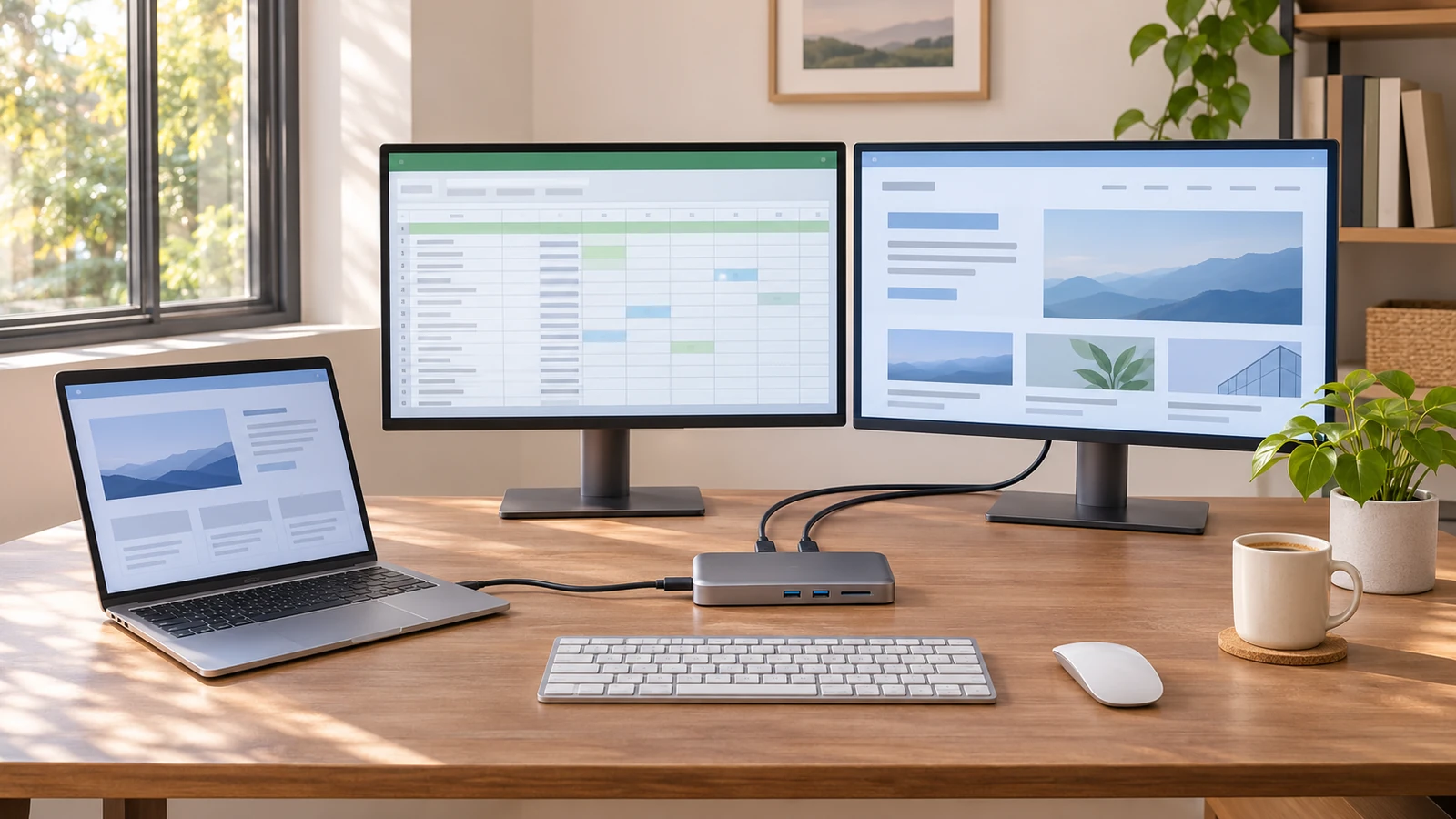
A docking station fixes that. Plug one cable into your laptop and suddenly you have a full desk setup. It's a bit like the TARDIS from Doctor Who: a small box that's somehow bigger on the inside.
But docks are also one of the most returned tech accessories. The reason is simple. Two docks can look identical and behave completely differently depending on your laptop. This guide covers the questions people usually ask a store salesperson, in plain English, so you buy the right one the first time.
The Quick Answer
If you only read one section, read this one:
- Check your laptop's USB-C port first. It must support video output (often called "DisplayPort Alt Mode") and charging (called "Power Delivery"). Not all USB-C ports do.
- Mac users, slow down. Most budget multi-monitor docks will only mirror your screens on a Mac. They won't extend your desktop across both screens. Details below.
- Count your monitors and check their resolution. "Supports 3 monitors" on the box often means three monitors at lower quality.
- Match the charging power to your laptop's charger. A "100W" dock usually sends about 85W to your laptop.
- Most people with a regular laptop and one or two monitors don't need an expensive Thunderbolt dock. Power users and Mac users wanting multiple screens often do.
Hub vs. Dock: What's the Difference?
People use these words interchangeably, and so do many product listings. Here's the general difference:
| Item | USB-C Hub | USB-C Docking Station |
|---|---|---|
| Size | Pocket-sized | Desk-sized |
| Power | Usually runs off your laptop's power | Often has its own power adapter, or passes your charger's power through |
| Monitors | Usually one | Usually two or more |
| Best for | Travel, coffee shops | A permanent desk setup |
Pros of a dock: One cable connects everything, a cleaner desk, and more ports.
Cons: It costs more, takes up desk space, and is less portable.
Step 1: Check Your Laptop's USB-C Port
This is the step most people skip, and it causes most dock problems.
USB-C describes the shape of the plug, not what the port can actually do. Think of USB-C as a doorway. What comes through that doorway depends on the technology behind it. One USB-C port might handle video, data, and charging. Another, on the same laptop, might only handle data.
How to check:
- Look for a small icon next to the port. A lightning bolt usually means Thunderbolt, which supports video and docks. A "D" shape with a "P" inside is the DisplayPort symbol, which means video works. A battery or plug icon usually means charging.
- Search your exact laptop model's spec sheet. Look for phrases like "DisplayPort Alt Mode," "DP Alt Mode," "USB-C with DisplayPort," "Thunderbolt," or "USB4."
- No icons and no clear specs? Contact the laptop maker before buying. Many manufacturers skip the icons.
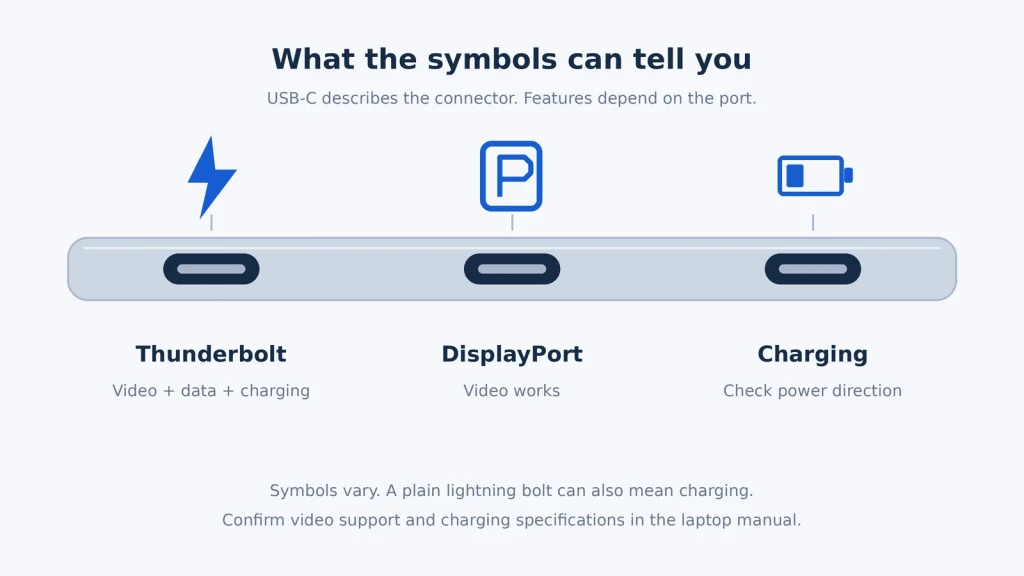
Bottom line: If your port doesn't support video, a dock's HDMI and DisplayPort jacks will do nothing. The one exception is DisplayLink docks, covered below.
Step 2: USB-C vs. USB4 vs. Thunderbolt
All three use the exact same plug. The difference is how much data can flow through the cable and how strict the rules are. Picture a highway: they all share the same on-ramp, but some roads have more lanes and a speed limit that is actually enforced.
| Item | Standard USB-C Dock | USB4 Dock | Thunderbolt 4 / 5 Dock |
|---|---|---|---|
| Max speed | Usually 5–10 Gbps | 20 or 40 Gbps | 40 Gbps (TB4), up to 80 Gbps (TB5) |
| Guaranteed features | Few | Some optional | Strict certification |
| Typical price range | About $30–$120 | About $100–$300 | About $150–$500 |
| Best for | Everyday users on a budget | Newer Windows laptops, especially AMD | Power users, Mac multi-monitor setups |
Why the price gap? Thunderbolt 4 certification requires a minimum level of performance, so you know what you're getting. USB4 allows lower minimums. Some USB4 ports run at 20 Gbps, not 40. Standard USB-C docks vary the most.
Good news: These standards are cross-compatible. A Thunderbolt dock generally works in a regular USB-C port, but only at that port's speed. A regular USB-C dock works fine in a Thunderbolt port.
Pros of Thunderbolt: Predictable performance, more monitor bandwidth, and fewer "why isn't this working" moments.
Cons: It costs more, and it's overkill for one or two 1080p monitors and a mouse.
Step 3: Monitors — How Many and How Sharp?
This is where the fine print hides.
"Triple monitor support" has a catch
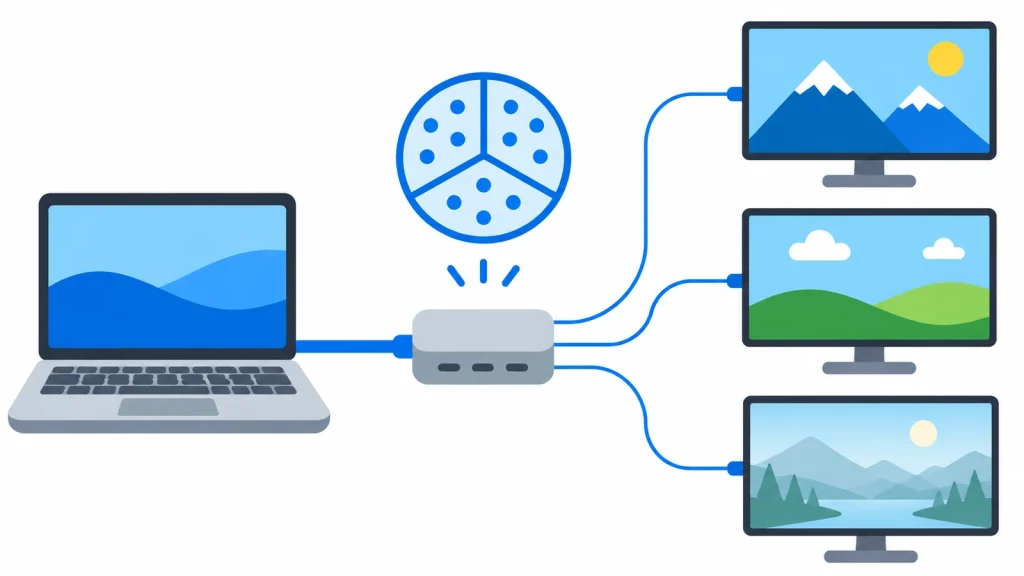
A standard USB-C port has a limited amount of video bandwidth. When a dock splits that bandwidth across several monitors (a technique called MST, short for Multi-Stream Transport), each screen gets a smaller slice.
So a box that says "3 monitors" or "4K" might really mean:
- One 4K monitor at full smoothness, or
- Two 4K monitors, or
- Three monitors where one or more drops to a lower resolution or a choppier refresh rate.
Plain-English version of the jargon:
- Resolution (1080p, 1440p, 4K) = how sharp the picture is.
- Refresh rate (30Hz, 60Hz) = how many times per second the picture updates. 60Hz feels smooth. 30Hz feels laggy when you move your mouse, a little like watching a slideshow of your own cursor.
For office work, 30Hz is usable but annoying. For anything involving motion, you want 60Hz.
What to check: Look in the product listing for a line showing exact combinations, such as "dual 4K@60Hz" or "triple display: 4K + 4K + 1080p." If the listing only says "up to 8K" with no detail, assume that number applies to one monitor by itself.
Your laptop matters too. The same dock can produce different results on different laptops. If your laptop supports a newer video standard (DisplayPort 1.4, sometimes with "DSC" compression), you get more bandwidth. Older laptops (DisplayPort 1.2) may be limited to dual 1080p or a single 4K at 30Hz.
HDMI vs. DisplayPort on the dock
- HDMI works with nearly every monitor and TV. To get 4K at 60Hz, both the monitor and the cable need to support HDMI 2.0 or newer.
- DisplayPort is common on office and gaming monitors and often handles higher resolutions better.
Match the dock's ports to your monitors' ports, or plan on buying adapters.
The Mac Catch (Read This If You Own a MacBook)
This is the single biggest reason docks get returned.
macOS does not support MST, the screen-splitting technology most budget multi-monitor docks use. Plug one of these docks into a Mac with two monitors and both external screens show the same image (mirror mode). You can't drag a window from one to the other. Many dock listings say this in small print, with notes like "macOS supports mirror mode only."
On top of that, each Mac has a built-in limit on how many external monitors it can run on its own:
| MacBook | Native external monitor support |
|---|---|
| MacBook Air M1 / M2 | 1 |
| MacBook Air M3 | 1 with lid open, 2 with lid closed |
| MacBook Air M4 / M5 | 2, with the lid open |
| MacBook Pro (base M5) | 2 |
| MacBook Pro (M5 Pro / M5 Max) | 3 / 4 |
Check Apple's support page for your exact model. Apple updates these limits with new chips.
Your options as a Mac user:
- One external monitor? Almost any dock with a video port will work.
- Two monitors on an M4 or M5 Air (or a Pro)? Use a Thunderbolt dock with two video outputs. Thunderbolt doesn't rely on MST, so both screens extend properly.
- More monitors than your Mac natively supports? Look for a DisplayLink dock.
What's DisplayLink?
DisplayLink docks use a special driver (software you install) to send video over a regular USB data connection, which gets around the Mac's built-in monitor limit.
Pros: It can add extra monitors even to an M1 or M2 MacBook Air, and it works with Windows too.
Cons: You must install and update the driver. On a Mac you also have to grant "screen recording" permission. It uses some processor power, and it's not ideal for gaming or some protected streaming video.
Mac shoppers: the dock must explicitly say "DisplayLink" or "Thunderbolt" if you want two or more extended screens. "Triple display" alone means nothing for you.
Step 4: Charging (Power Delivery)
Most docks can charge your laptop through the same cable, using a feature called Power Delivery (PD). A few key points:
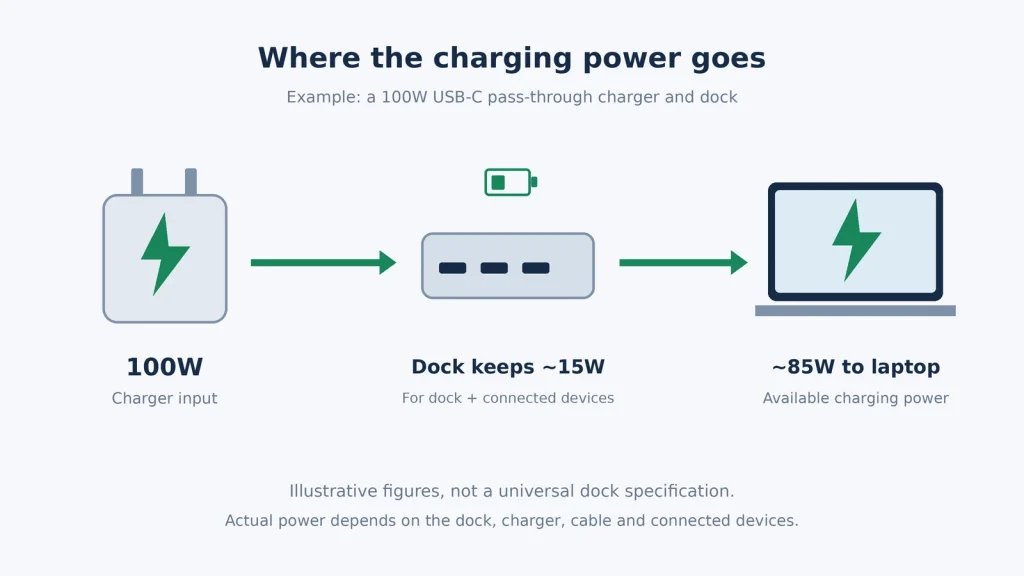
"100W" usually doesn't mean 100W to your laptop. The dock keeps some power for itself and its ports. A common setup is 100W in, about 85W out to the laptop. Many manufacturers state this in their fine print.
Many docks don't include a power brick. Budget USB-C docks often work as "pass-through" docks. You plug your laptop's own USB-C charger into the dock, and the dock passes power along. Check whether a power adapter is included.
Does 85W matter? For most thin-and-light laptops (which typically use 45W–65W chargers), no. For gaming laptops or high-end workstations that ship with 100W+ chargers, yes. Your laptop may charge slowly or drain under heavy load.
Pros of dock charging: One cable, and you can leave your charger at the desk.
Cons: It may be slower than your original charger, and it depends on what your charger can supply.
Tip: Look at your laptop's original charger. Whatever wattage is printed on it, you want a dock that can deliver at least that much to the laptop, after the dock's own share.
Step 5: Data Ports, Speeds, and the Naming Mess
USB naming has been confusing for years. Products have carried labels like "USB 3.2 Gen 2×2." The USB industry group has since moved to simpler names based on speed: USB 5Gbps, USB 10Gbps, USB 20Gbps, USB 40Gbps, and USB 80Gbps. Listings still use both styles, so here's a cheat sheet:
| What the listing might say | What it means | Good for |
|---|---|---|
| USB 2.0 / 480Mbps | Slow | Keyboard, mouse, printer |
| USB 3.0 / 3.1 Gen 1 / 3.2 Gen 1 / 5Gbps | Decent | Webcams, flash drives, most external drives |
| USB 3.1 Gen 2 / 3.2 Gen 2 / 10Gbps | Fast | Portable SSDs, big file transfers |
| USB4 / 40Gbps / Thunderbolt | Very fast | Pro storage, video editing |
Who needs 10Gbps ports? People who move big files often, such as video, photo libraries, or backups, to a fast external SSD. For a mouse, keyboard, and webcam, 5Gbps is plenty.
Count your ports honestly. List every device you plug in today, add one for the future, and make sure the dock has enough of the right shape (USB-A for older devices, USB-C for newer ones).
Step 6: The Other Ports Worth Caring About
- Ethernet (wired internet): Great for video calls and remote work. A cable is usually more stable than Wi-Fi. Most docks offer Gigabit (1 Gbps), which is plenty for most home internet plans.
- SD / microSD card readers: A must for photographers and drone owners. A "meh" for everyone else.
- 3.5mm audio jack: Handy for wired headphones or desk speakers.
- Front vs. back ports: Ports on the front are for things you plug in often (flash drives, phones). Ports on the back are for things that stay plugged in (monitors, Ethernet).
Step 7: Build, Cable, and Desk Fit
- Detachable cable: If the cable that connects to your laptop breaks, a detachable one can be replaced. A built-in cable can't.
- Cable length: Short built-in cables (6–12 inches) can force awkward desk layouts. Around 3 feet gives you room to move things around.
- Heat: Docks get warm, especially when charging and running multiple monitors. Aluminum bodies spread heat better than plastic. Keep the dock out of direct sun and off soft surfaces.
- Stand-style docks: Some docks double as a laptop stand, which raises your screen and saves desk space.
Questions Shoppers Usually Ask
Will this dock work with my laptop?
Only if your USB-C port supports video and charging. Check your laptop's spec sheet for "DisplayPort Alt Mode," "Thunderbolt," or "USB4." When in doubt, ask the dock seller with your exact laptop model.
Will it work with my Chromebook?
Many Chromebooks support USB-C docks, but video support varies by model and sometimes by port. Check your Chromebook's specs.
Do I need drivers?
Most standard USB-C and Thunderbolt docks are plug-and-play. DisplayLink docks require a driver.
Can I connect a gaming laptop?
Yes, but a dock's 60Hz limit and power ceiling may hold back a gaming laptop. Many gamers connect their main monitor directly to the laptop's HDMI port and use the dock for everything else.
Why does my second monitor show the same thing as the first?
If you're on a Mac, the dock probably uses MST, which macOS doesn't support for extended displays. On Windows, press Windows key + P and choose "Extend."
Why is my 4K monitor stuck at 30Hz?
The usual causes are a bandwidth limit (too many monitors for your laptop's port), an older HDMI cable, or a monitor setting. Try a certified HDMI 2.0 cable and fewer monitors to narrow it down.
Does a more expensive dock mean a better dock?
Not always. A $300 Thunderbolt dock is wasted on someone with one 1080p monitor. Buy for the setup you actually have.
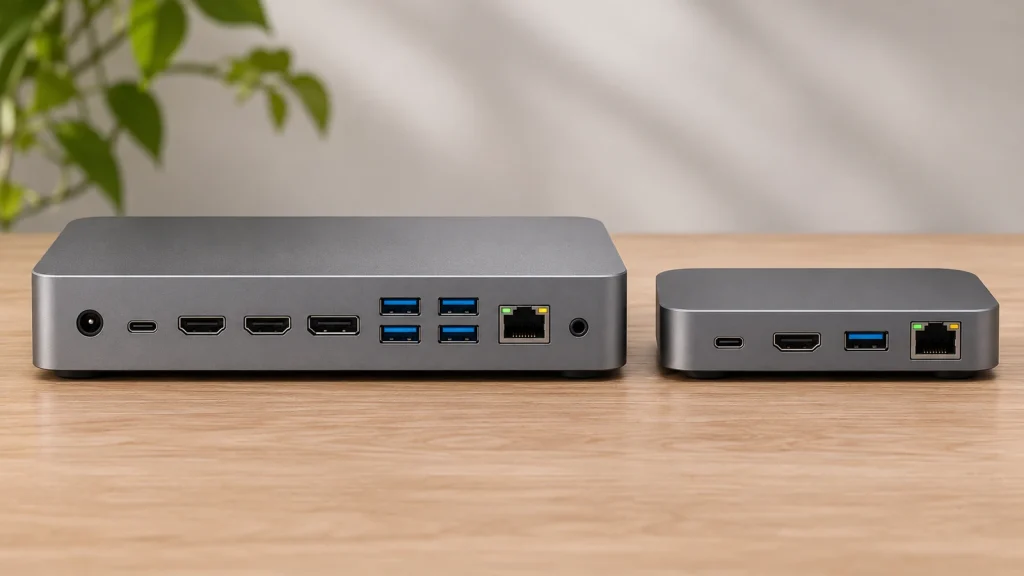
Our picks
Acer 11-in-1 USB-C Docking Station for Three Monitors
Review of the Acer Laptop Docking Station 3 Monitors: ports, triple-display limits, Acer laptop compatibility, charging, setup questions and listed price.
Research-based pick
WAVLINK DisplayLink Docking Station for Three Monitors (Mac and Windows)
Review the WAVLINK Displaylink Docking Station for Mac and Windows: three-display claims, compatibility, ports, 100W PD, two-year warranty and SEK1252.48 price.
Research-based pick
Giq 10-in-1 USB-C Docking Station with Dual HDMI
Review the Giq USB C Laptop Docking Station Dual HDMI Monitor 10in1 Dongle Type-C Hub Dock, including display support, compatibility, ports, charging and price.
Research-based pick


Which One Fits You?
| If you… | Lean toward |
|---|---|
| Use Windows and want three monitors | Acer 11-in-1 |
| Use Windows and want two monitors, simple setup | UANTIN two-monitor dock |
| Move big files to external SSDs often | Acer (10Gbps USB-C) |
| Use a MacBook and want two separate external screens | Neither. Look at a Thunderbolt or DisplayLink dock |
| Use a MacBook with one external monitor | Either should work for one screen; confirm with the seller |
Your Pre-Purchase Checklist
Before you click "buy," run through this list. It's the "Don't Panic" towel of dock shopping, borrowing from The Hitchhiker's Guide to the Galaxy.
- My laptop's USB-C port supports video (DP Alt Mode, Thunderbolt, or USB4) and charging (Power Delivery).
- I know how many monitors I'll connect, and the listing shows the resolution and refresh rate for that exact number.
- Mac users: The dock is Thunderbolt or DisplayLink if I want two or more extended screens.
- The dock's charging output (after its own share) meets or beats my laptop charger's wattage.
- I know whether the dock includes a power adapter or needs my laptop's charger.
- The dock has enough USB-A and USB-C ports at the speeds I need.
- The dock's video ports match my monitors (HDMI vs. DisplayPort), or I have adapters.
- I'm using HDMI 2.0 or newer cables for 4K at 60Hz.
- The cable length works for my desk, and ideally it's detachable.
Get these right, and your dock will be the one cable to rule them all. Get them wrong, and you'll be in the returns line explaining that your monitor "only shows the same thing twice."
Sources and Further Reading
- Apple Support — How many displays can be connected to MacBook Air
- MacRumors — M4 MacBook Air supports two displays with lid open
- Plugable Knowledge Base — Understanding External Display Support on Apple M1–M5 Chips
- Plugable — Products Tested and Approved for the MacBook Air (M5), including note on macOS and MST
- DisplayLink Forum — Mac computers do not support DP MST hubs
- Macworld — Getting around Apple's Mac external display limitations
- Plugable Knowledge Base — USBC-MSTH3 supported display configurations (DP 1.2 vs. DP 1.4 bandwidth)
- Tom's Guide — Thunderbolt 4 vs. USB4: What's the difference?
- Guru3D — USB-IF drops SuperSpeed and USB4 consumer names
- SlashGear — What the "D" (DisplayPort) symbol next to a USB port means
- TESmart — How do I know if my USB-C port supports video output?
- Kensington — Answers to everyday questions about docking station power delivery
- IOGEAR — Dock Pro 100 specifications (85W delivered after 15W dock use)
- University of Michigan LSA IT — Installing DisplayLink drivers on Mac
- Best Buy — Acer 11-in-1 USB-C Docking Station listing (specifications)
- Newegg Business — UANTIN 11-in-1 Dual Monitor Docking Station listing
- Manuals+ — UANTIN dual HDMI adapter manual (macOS mirror-mode note)
Specs, compatibility, and availability can change. Always confirm details on the product page and with your laptop manufacturer before buying.